How to Free Up iPhone Storage (Complete 2026 Guide)
Running out of space? Here's what to delete, and in what order, to free up iPhone storage fast, without losing anything important.
Updated
"Storage Almost Full." You've seen the notification so many times it's become part of the iPhone experience. You know you should do something about it. You also know that manually deleting one photo at a time is the worst possible use of a Saturday.
Here's the complete guide to free up iPhone storage in 2026, in priority order, so if you stop halfway you've still made a real dent.
First: find out where your storage actually wentLink to section
Before you delete anything, open Settings > General > iPhone Storage. At the top you'll see a colorful bar chart broken into categories. Underneath, every app is ranked by how much space it takes.
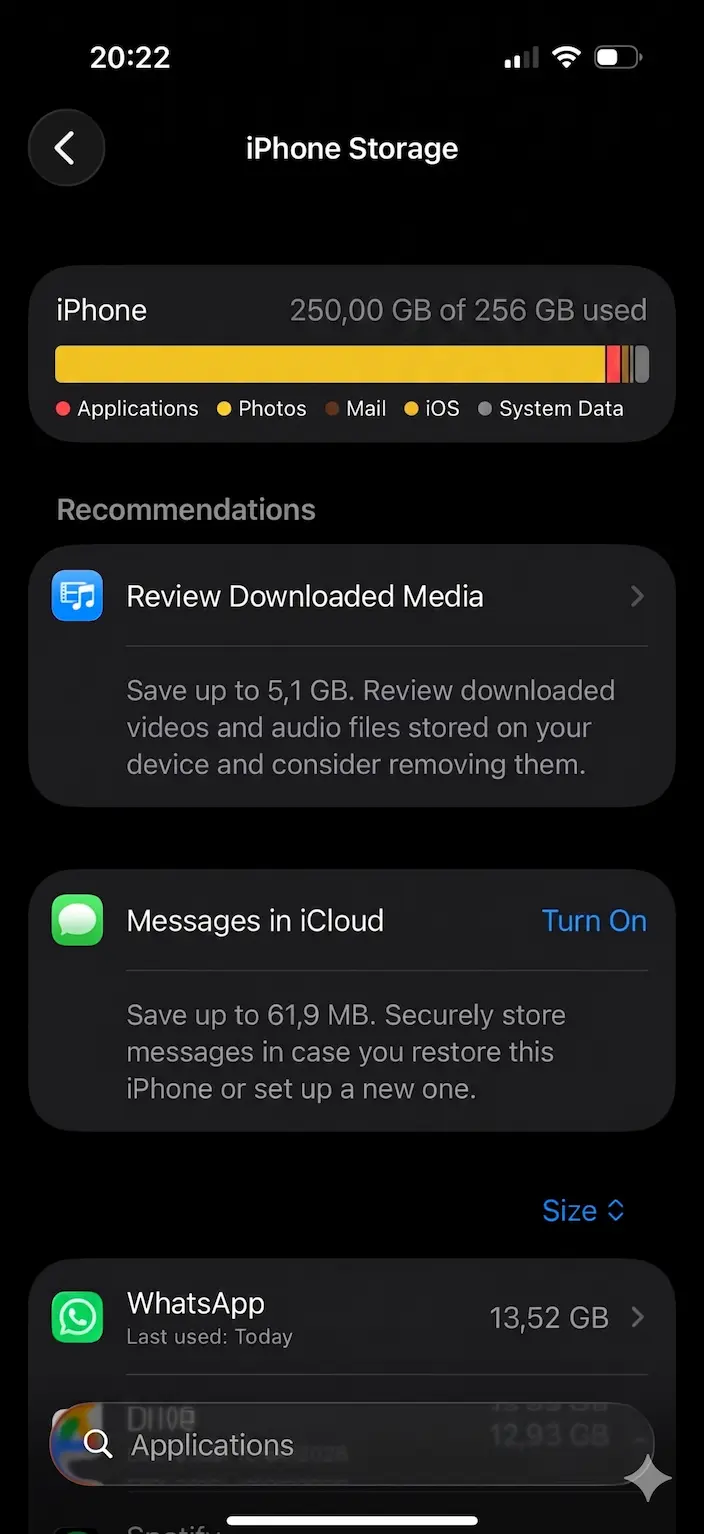
This tells you where to focus. For most people the order is:
- Photos (often 40–70% of total storage)
- Messages (especially if you get a lot of videos/memes)
- Video apps, TikTok, YouTube, Netflix (downloaded shows)
- System Data, hard to control directly
- Apps you forgot you installed
We'll tackle them in that order, it's where the gigabytes actually are.
1. Clean your camera roll (the big one)Link to section

Photos and videos are where most of your storage went. A typical iPhone user deletes about 2% of the photos they take. Which means after four years you're carrying around thousands of images you will literally never look at.
What to delete, in rough priority:
- Duplicates: iOS has a built-in tool at Photos > Albums > Utilities > Duplicates. See our full guide to deleting duplicates.
- Screenshots: most people have 500–2,000 and need about 20. Albums > Screenshots > Select > swipe through fast.
- Live Photos you don't care about: a Live Photo is ~3× the size of a regular photo. If it's not a memory, convert it to a still.
- Blurry shots, burst outtakes, receipts you no longer need.
- Videos over 30 seconds that aren't memories: these are storage's heaviest objects. A single 4K minute is ~400MB.
Doing this manually in the Photos app is brutal. A photo cleaner app like Favvy lets you swipe through the entire job in one sitting, nothing is deleted until you confirm at the end, and everything stays on your device.
Get the app
Reclaim gigabytes in one swipe session.
Favvy turns camera-roll cleanup into a minute of scrolling. Free to try, nothing uploaded.


2. Empty Recently Deleted (or nothing frees up)Link to section
This is the step nine out of ten people miss. When you delete a photo on iPhone, it doesn't free the storage, it moves to Recently Deleted and sits there for 30 days.
Go to the Recently Deleted album
Open Photos > Albums. Scroll down to Recently Deleted.
Unlock it (Face ID)
iOS 16+ requires Face ID or your passcode to view this album.
Select All > Delete
Tap Select in the top-right, then Delete All in the bottom-left, and confirm.
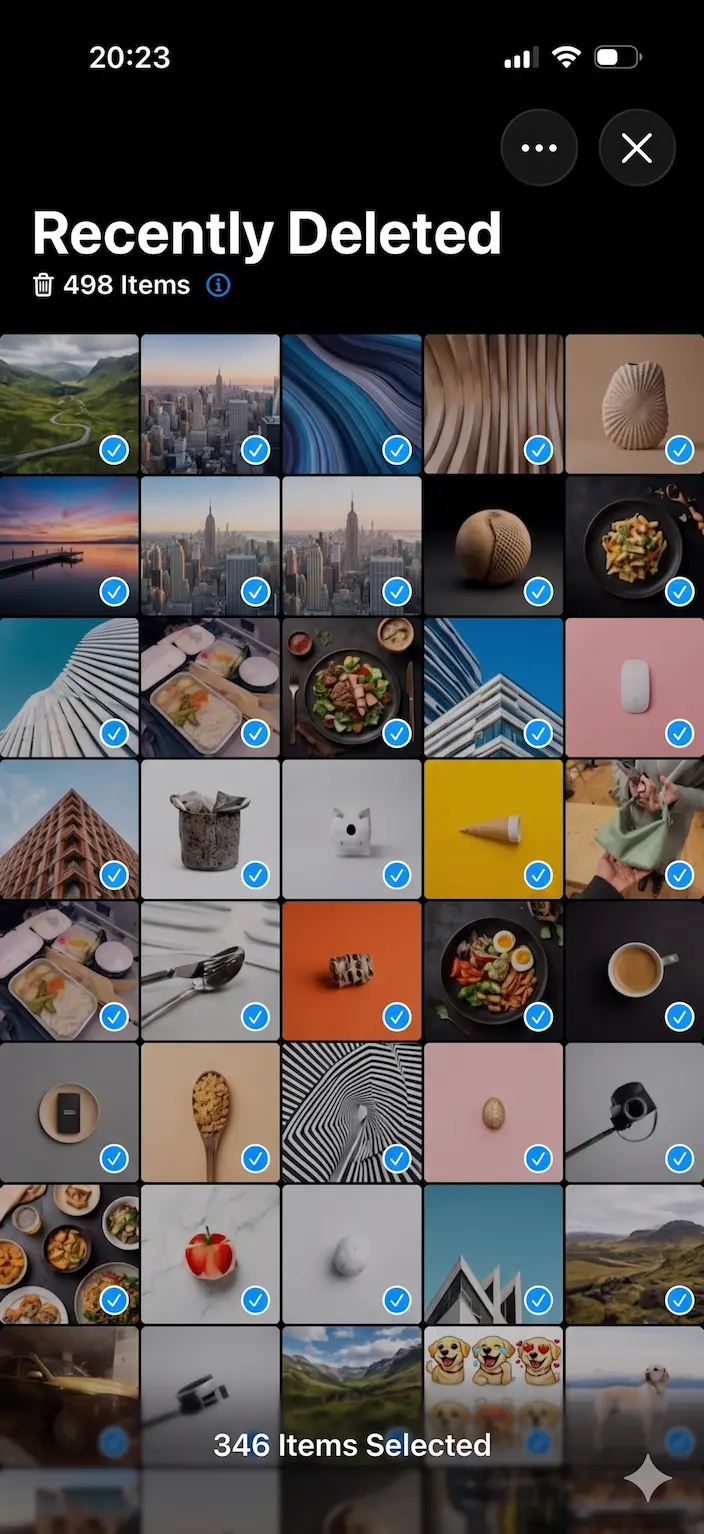
Do this. If you skip it, you did the work and got none of the storage.
3. Clear out Messages attachmentsLink to section
Settings > General > iPhone Storage > Messages. You'll see a breakdown: Top Conversations, Photos, Videos, GIFs and Stickers. Tap each and delete the ones you don't need. Videos especially, a single forwarded video can be 300MB.
You can also set Settings > Messages > Keep Messages to 30 Days or 1 Year instead of Forever. Older messages (and their attachments) auto-delete.
4. Offload apps you don't useLink to section
Still in iPhone Storage. Scroll the app list and look for anything you haven't opened in six months. Tap the app, then tap Offload App. This removes the app binary but keeps your data, if you reinstall, your settings and saves come back.
Heavy offenders most people should offload:
- Food delivery apps from cities you don't live in anymore
- Games you finished years ago
- Travel apps for trips you've taken
- Work tools from previous jobs
5. Clear downloaded videos in streaming appsLink to section
- Netflix → Settings icon → My Downloads → Delete All.
- YouTube → Library → Downloads → remove what's old.
- Spotify → Your Library → Liked Songs → remove downloads on albums you don't listen to.
- Apple Podcasts → Library → Downloaded → swipe to remove.
Downloaded content is often 5–15GB combined, and you probably forgot most of it was there.
6. Clear Safari cacheLink to section
Settings > Safari > Clear History and Website Data. Usually frees 100–500MB. Worth doing but not where your gigabytes are hiding.
7. Turn on iCloud Photos (Optimize Storage)Link to section
If you pay for iCloud (or don't mind the 50GB plan at $0.99/month), turn on Settings > Photos > iCloud Photos and choose Optimize iPhone Storage. iOS keeps full-resolution copies in the cloud and only stores lightweight versions locally, pulling full-res on demand.
This is the single best storage trade-off Apple offers if you have a huge library, but it's not a substitute for cleaning. A gallery full of junk is a gallery full of junk in the cloud too.
8. As a last resort: back up, erase, restoreLink to section
If you've done all of the above and storage is still tight, the nuclear option is to back up your iPhone (iCloud or computer), erase it, and restore from backup. iOS sometimes accumulates "System Data" that can only be cleared this way. It's a multi-hour job, save it for when you've exhausted easier fixes.
A habit that keeps it clean foreverLink to section
Spending an hour to free up iPhone storage and then watching it refill over the next eight months is the universal experience. The fix is to build a tiny weekly habit instead.
Frequently asked questions
What takes up the most storage on iPhone?
Why is my iPhone storage full when I deleted everything?
Does clearing cache free up iPhone storage?
How much free space should my iPhone have?
Get the app
Clean your gallery with Favvy
Swipe to keep or delete. Runs on-device, no account, no uploads. Free to try.